
A MSG to EML converter is useful when Outlook message files need to be converted into a format that is easier to open, archive, migrate, and reuse. MSG files are mainly associated with Microsoft Outlook, while EML files are supported by many different email clients. This makes the conversion especially valuable when emails should remain accessible outside a specific Outlook installation.
For companies, freelancers, support teams, and private users, Outlook file conversion is often part of a larger email migration or archive cleanup. With E-Mail Converter Professional, saved Outlook messages can be transformed into EML files in a structured way, without manually opening each message and exporting it one by one. This helps users save time and keeps important communication available for future reference.
Converts Outlook MSG Files to EML Format
Outlook MSG files can contain important email information, including the message body, sender, recipients, subject, date, and formatting. During conversion, these details should be transferred into the EML file as accurately as possible. This is important because an email archive is only useful if the converted messages remain readable and complete.
A reliable MSG to EML workflow is helpful for many practical situations, such as:
- converting saved Outlook messages for long-term email archiving
- preparing old MSG files for use in another email client
- making business communication easier to store and review
- organizing exported Outlook emails before a system migration
- reducing manual work when many individual message files are involved
For beginners, the benefit is straightforward: the original Outlook message is converted into a more portable email format. Instead of being limited to an Outlook environment, the exported EML files can be handled more flexibly in backup folders, migration projects, and compatible mail applications.
Why EML Format Is Useful for Email Client Migration
EML is a widely used email file format that stores individual messages in a standardized structure. Many email clients can open or import EML files, which makes the format practical when moving from Outlook to another application. This is one reason why MSG to EML conversion is often used during email client migration.
The format is also useful for users who want to separate old emails from an Outlook installation but still keep access to the content. EML files can be stored in project folders, backup directories, customer archives, or document-management workflows. This gives users more control over how their email data is organized after conversion.
Available Converting Methods
Different users need different conversion methods. A small archive may only require selected message exports, while a business migration can involve thousands of Outlook MSG files. Flexible converting methods help users choose the right process for their amount of data, technical skill level, and migration goal.
Single Convert for Selected Emails
Single convert is the right method when only a few selected emails need to be changed from MSG to EML. This can be useful for important customer messages, invoices, legal correspondence, support cases, project updates, or archived conversations that must be preserved separately.
This method is also helpful for testing. Users can convert one or two sample messages first and check whether the resulting EML files contain the expected content, metadata, and formatting. For beginners, this makes the process easier to understand before converting a larger archive.
Batch Convert for Large Email Collections
Batch convert is designed for users who need to process many files at once. Instead of converting every MSG file individually, a batch workflow can handle larger email collections in one operation. This is especially useful for archived mailboxes, old Outlook export folders, customer communication, or company-wide email storage.
Batch conversion can be especially valuable when users need to:
- process many Outlook MSG files without repetitive manual steps
- prepare larger archives before switching to a new computer or email client
- convert email collections from different projects, customers, or departments
- keep the output consistent across many exported messages
- save time during archive cleanup or Windows migration projects
A batch workflow makes the conversion more efficient and reduces the risk of missing individual files. It is particularly useful when older email archives must be prepared for long-term storage or transferred to another environment.
CLI-Based Conversion for Repeatable Workflows
CLI-based conversion is useful for advanced users, administrators, and IT teams that need repeatable workflows. A Command-Line-Interface allows conversion tasks to be started through commands, scripts, or scheduled processes instead of relying only on manual interaction with a graphical interface.
This approach is helpful when the same type of MSGtoEML task needs to be performed regularly. For example, an administrator can create a scripted process for archive conversion, backup preparation, or recurring migration work. CLI support can make email conversion more scalable, especially in professional IT environments where consistency and automation matter.
MSGtoEML for Windows 10 to Windows 11 Email Migration
MSGtoEML conversion can play an important role during a Windows 10 to Windows 11 email migration. Many users take a system upgrade as an opportunity to clean up old files, reorganize archives, and move important data to a more modern environment. If emails are stored as Outlook MSG files, converting them to EML can make the transition easier.
A Windows migration is not only about the operating system. Users also need to make sure that old email data remains accessible after the move. MSGtoEML conversion helps prepare archived Outlook messages before the upgrade, especially when the new system uses another email client or a different storage structure.
Transfer Legacy Outlook Archives to a New Windows Environment
Legacy Outlook archives are often stored in old folders, backup drives, exported project directories, or previous user profiles. Before moving to Windows 11, these archives should be reviewed and organized. Converting the messages into EML format can help prevent access problems later, particularly if Outlook is not installed on the new system.
A practical preparation process includes sorting source folders, backing up original MSG files, testing the conversion with selected messages, and then converting the full archive. This gives users a clearer structure and reduces the risk of losing important communication during the transition.
Prepare Email Data for Import into Other Email Clients
When users move from Outlook to another email client, file compatibility becomes important. MSG files are not always easy to import directly into alternative mail applications, while EML files are more commonly supported. This makes conversion a useful step before importing archived messages into a new email environment.
The goal is to keep the email data complete and easy to work with. Message text, subject lines, sender and recipient details, dates, and formatting should remain available after conversion. This is important for business documentation, support history, customer communication, and personal archives.
Outlook Email Archive Processing with E-Mail Converter Professional
Outlook email archive processing is especially important when users work with large collections of saved messages. A well-structured archive should not only contain converted files, but also preserve the context in which those emails were stored. Folder structures, metadata, and readable message content all help users find and understand old communication later.
Convert Multiple Email Files in Batch Mode
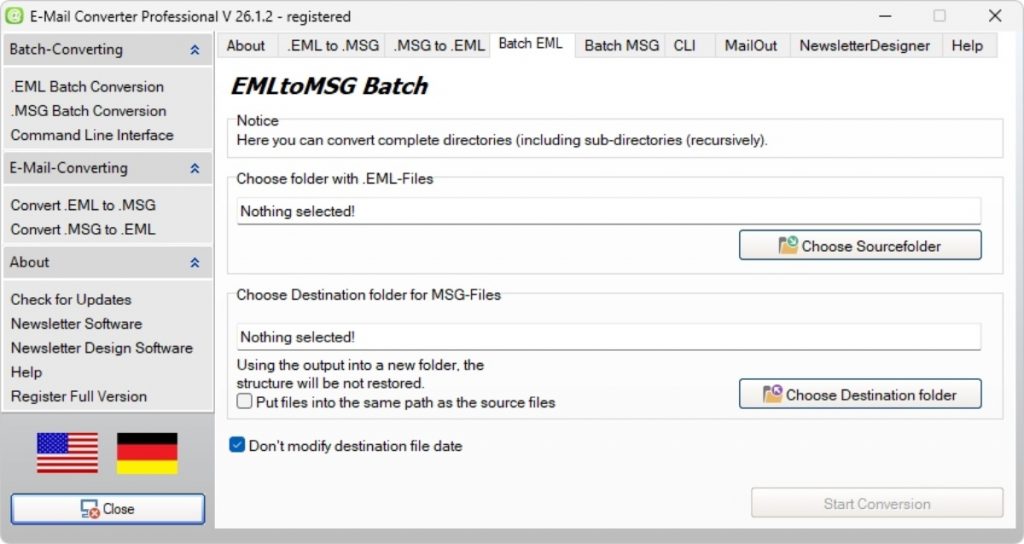
Batch mode is one of the most efficient ways to handle larger MSG archives. It allows users to convert multiple files in a single process and is helpful when working with old project folders, customer correspondence, or exported Outlook message collections. Instead of managing each file separately, users can process complete sets of emails more efficiently.
When upgrading your operating system, local email archives can quickly become a challenge. Since the new Outlook on Windows 11 focuses heavily on cloud integration, older file formats might lose their native accessibility. To secure your communication history, it is highly recommended to back up Outlook MSG files before a system change. By relying on a desktop utility to prepare local email archives for Windows 11 through MSGtoEML conversion, you ensure long-term accessibility. This way, you can easily keep older message collections usable across different user profiles and modern mail setups.
This is particularly useful in business environments where archived emails may be needed for reference, audits, documentation, or customer support. A structured batch conversion process helps turn scattered MSG files into a more manageable EML archive.
Keep Folder Structures and Directory Paths Intact
Folder structure support is important when emails are already organized by customer, year, department, project, or topic. If the directory structure is preserved during conversion, users do not have to rebuild the archive manually after export. This makes the converted files easier to search, store, and transfer.
Keeping directory paths intact also helps maintain the original context of the emails. For example, a message stored in a specific project folder remains connected to that project after conversion. This is useful for teams that rely on structured archives and need clear access to historical communication.
Preserve Email Content, Metadata and Formatting
A professional conversion should preserve more than just the visible text of an email. Metadata such as sender, recipients, subject, and date is essential for understanding the message later. Formatting is also important because many emails contain signatures, quoted replies, tables, spacing, or structured business information.
When email content, metadata, and formatting are preserved correctly, the converted archive remains useful for research, documentation, migration, and long-term storage. This makes the conversion process valuable not only for technical compatibility, but also for everyday access to important communication.